Thursday, August 28, 2008

30 Days Of Meetup

Meetup.com provides web tools for groups like mine to schedule events and communicate with group members. Meetup has challenged local groups to do a membership drive to increase the presence of Meetp in the area. The local Organizer group has created a promotional event call 30 Days of Meetup. 30 Days of Meetup will highlight events from different groups each day of September.

This event will only highlight a small group of Meetups out of all the Meetups in the area. Currently there is on average 340 Meetup events each month with more than 3,000 members attending the events. Events range from small groups of 6 or so to groups with over 100 attendees. Groups focus are about almost anything, from writing groups to play groups. Meetup provides groups for almost any interest almost anywhere, because Meetup is a world wide community. Unlike other on-line social sites, Meetup's goal is to use on-line tools to get people off-line and together in the real world. If you can't find a group to fit your interest, you can always create your own.

Meetup groups help provide community on a larger scale than a subdivision. The Raleigh-Durham area in continually growing and Meetup is an excellent resource to new residents who are looking to connect with the area. If you are looking to increase your community, check out the highlighted events this month or just join Meetup yourself, it's free.

Thursday, July 3, 2008

Photo Albums and stuff at the bottom

My friends the Hesselinks are enjoying their new life across the bond. Jonathan wanted to post images to his Blogger and I told him to use Picasa, since it was part of the group of Google free tools. (We are so screwed when Google decides to start charging) So, I took a few minutes and found the new Slideshow widget and wrote him the basic directions for setting it up.

Adding a Picasa Album to your Blogger blog

  1. Edit your album properties in Picasa and make the album "Public"
  2. "Customize" your blog and edit the page layout by "Add a Page Element"
  3. Select the new Slideshow element
  4. Add a title, make sure it is pointing to Picasa Album, change radio to "Album"
  5. Enter your gmail account name without the "@gmail.com" part
  6. Select your public album and save
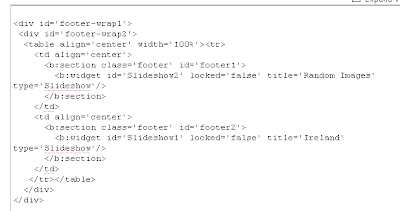
After I was finished I was thinking that it would be nice to add more than one album to the blog. Well, that's easy enough, because you can just add multiple Slideshow elements. However, each element has it's own holder (div) which makes for unecessary space and prevents you from displaying them horizontally. So, I did a quick search and learned the obvious trick : put in a HTML table and add each element to the table.

  1. Add one Slideshow element to your footer area
  2. Click the Edit HTML tab
  3. Find the "div" tags for the footer element
  4. After the "div id="footer-wrap2" tag create an HTML table with as many columns as you want to display
  5. Copy "b: section=" tag and data. This is the actual Slideshow element
  6. Paste each new "b:section" into it's own column
  7. Change the id for each "b: section" (ie. id='footer2')
  8. Change the id for each additional "b: section" widget (ie. id='Slideshow2')
  9. Change the title for the new "b: section" widget element to name= of the Picasa album (i.e. title='Ireland')

It should look something like this.

Tuesday, June 12, 2007

Adding a Meetup Badge to Blogger

Meetup.com provides ways to promote the groups you are a member of. One of these ways allows you to add a Meetup group "badge" to a blog. The "badge" is an image with the group name on it and a count down to the next event. The "badge" is clickable and directs the web surfer to the groups home page. You can add a "badge" to Blogger by using the HTML/JavaScript page element.


Preparation Steps
  1. First go to your Meetup group
  2. Click on "Promote!" or "Meetup Badges" (If you are not the organizer of the group.)
  3. Under the "Put this badge on your MySpace or blog…" select and copy the text for the Meetup badge

Adding to your Blogger Site
  1. Go to your Blogger
  2. Click "Customize"
  3. Click "Add a Page Element"
  4. Click "Add to Blog" for the HTML/JavaScript element
  5. Paste in your Meetup badge HTML

You should be able to paste in multiple badges under this one element.

Tuesday, April 3, 2007

meredith2.WMV

Off-roading with the L.O.S.T group.

Thursday, March 22, 2007

Adding Meetup Events to your Blog

Meetup.com provides RSS feeds for group events, RSVP notifications, new information, and other stuff. You can add these RSS feeds to your Blogger so that others can see what you are up to in Meetup.

Steps to add RSS feed to your Blogger (Google Blog) site.

Preparation Steps
  • Go to http://www.google.com/reader - you can make an account with your Google Account
  • Go to your Meetup group's Event List, click on the RSS link and copy the link location (i.e. http://www.meetup.com/RDUSingles/calendar/rss/The+Raleigh-Durham+Singles+Meetup+Group/ )

Version 1 - RSS Feed
  1. Go to your Blogger
  2. Click "Customize"
  3. Click "Add a Page Element"
  4. Find "Feed" and click "ADD TO BLOG"
  5. Copy your RSS feed URL into the form field and click "CONTINUE"
  6. Change any of the preferences and click "SAVE CHANGES"

Version 2 - Google Reader output
  • Back in Google Reader, click on Add subscription
  • Paste in your RSS feed url
  • The feed will be added, click on that feed
  • Click the "Share" icons for the events you want to share (you will have to go back to this when you add new items)
  • Click on "Shared Items"
  • Click on "put a clip of your shared items"
  • Click on the "Add to Blogger" button, it will ask you for your blog and then add the widget to your blog
To update the list
  • Go to http://www.google.com...
  • Click on that feed you want to share
  • Click the "Share" icons for the events you want to share